Guide
Free up iPhone storage without deleting the photos you care about
You need space, but you do not want to lose photos you care about. Here is the short version: turn on Optimize iPhone Storage, mark your favorites, then delete only the obvious junk.
Quick answer
- Turn on Settings > Photos > Optimize iPhone Storage. Your full-res photos stay safe in iCloud.
- Tap the heart on photos you love so they land in the Favorites album.
- Delete only the junk: old Screenshots and exact Duplicates.
- Empty Recently Deleted to reclaim the space.
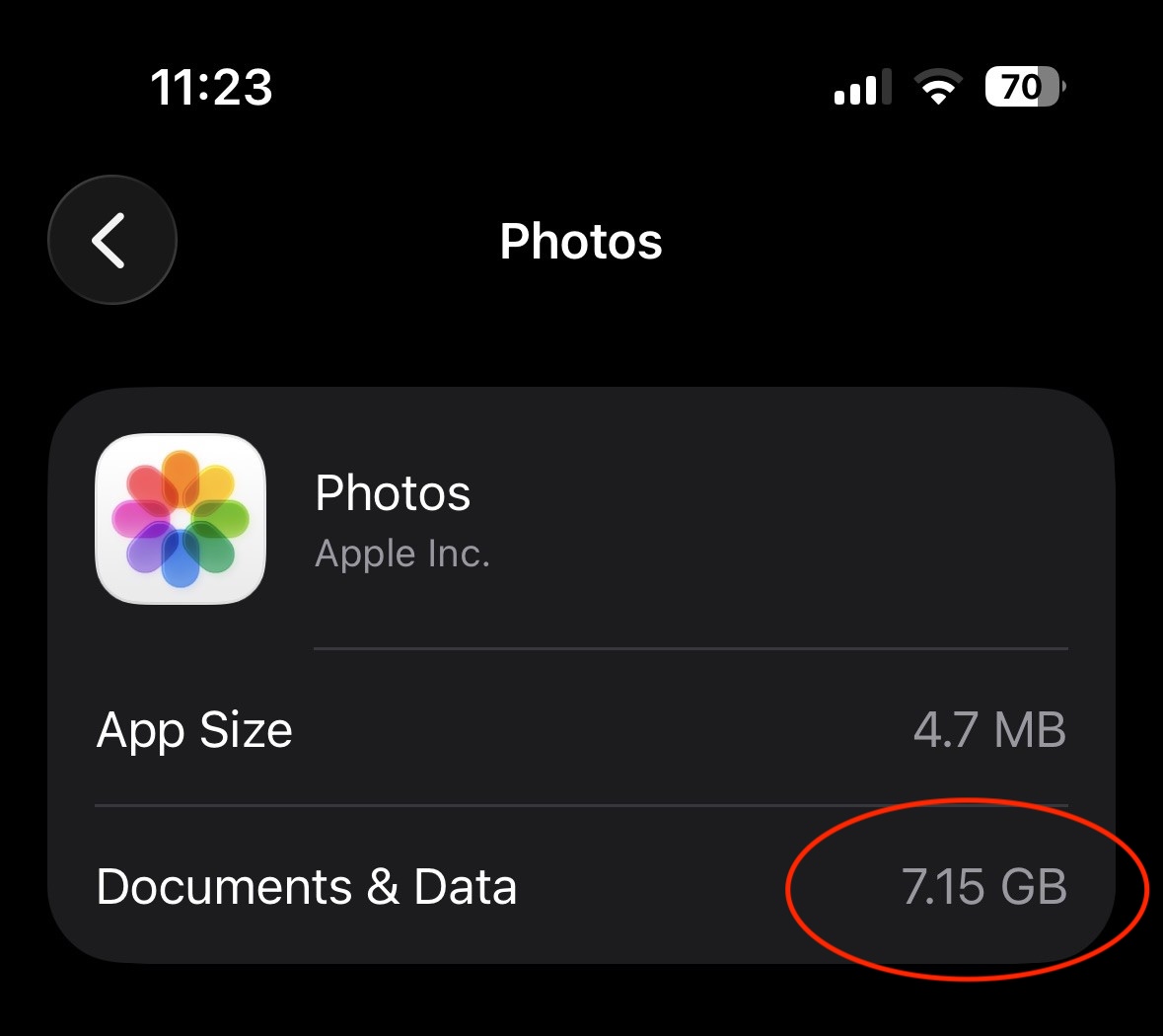
- Check Settings > General > iPhone Storage > Photos to confirm.
Step 1: Turn on Optimize iPhone Storage
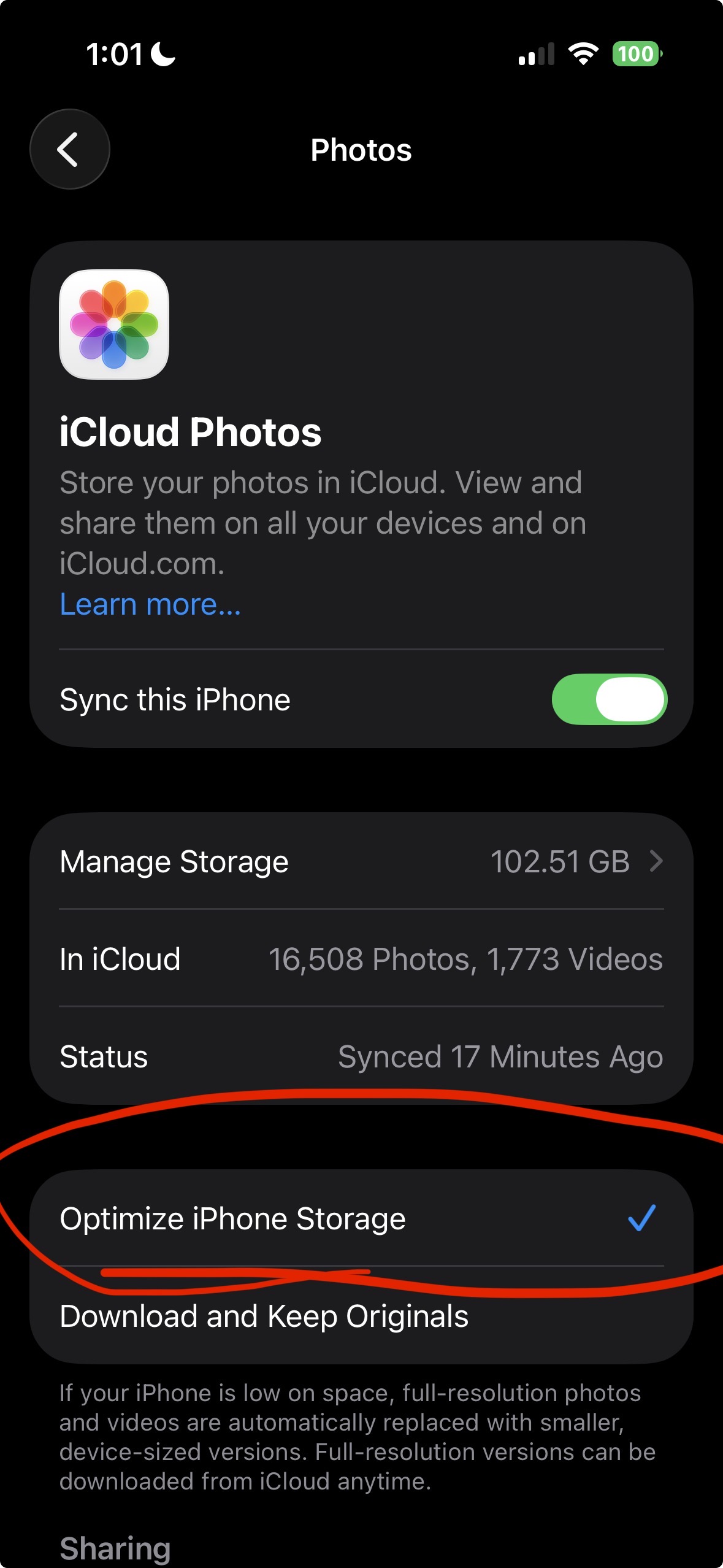
Open Settings > Photos. Turn on Sync this iPhone if it is off, then tap Optimize iPhone Storage. Apple keeps full-resolution originals in iCloud and stores smaller, device-sized versions on your phone. You free space without losing anything.
Videos get offloaded first because they are the biggest files. That is where most of the early space savings come from, often many GB on a full library.
iCloud is not free. The 200 GB plan is about $3 USD or $4 CAD a month. Most libraries fit on 200 GB, but heavy video shooters often need the 2 TB plan at around $10 USD a month. Tap Manage Storage on the same screen to see what your library uses before you pick a plan.
Step 2: Mark your favorites with the heart
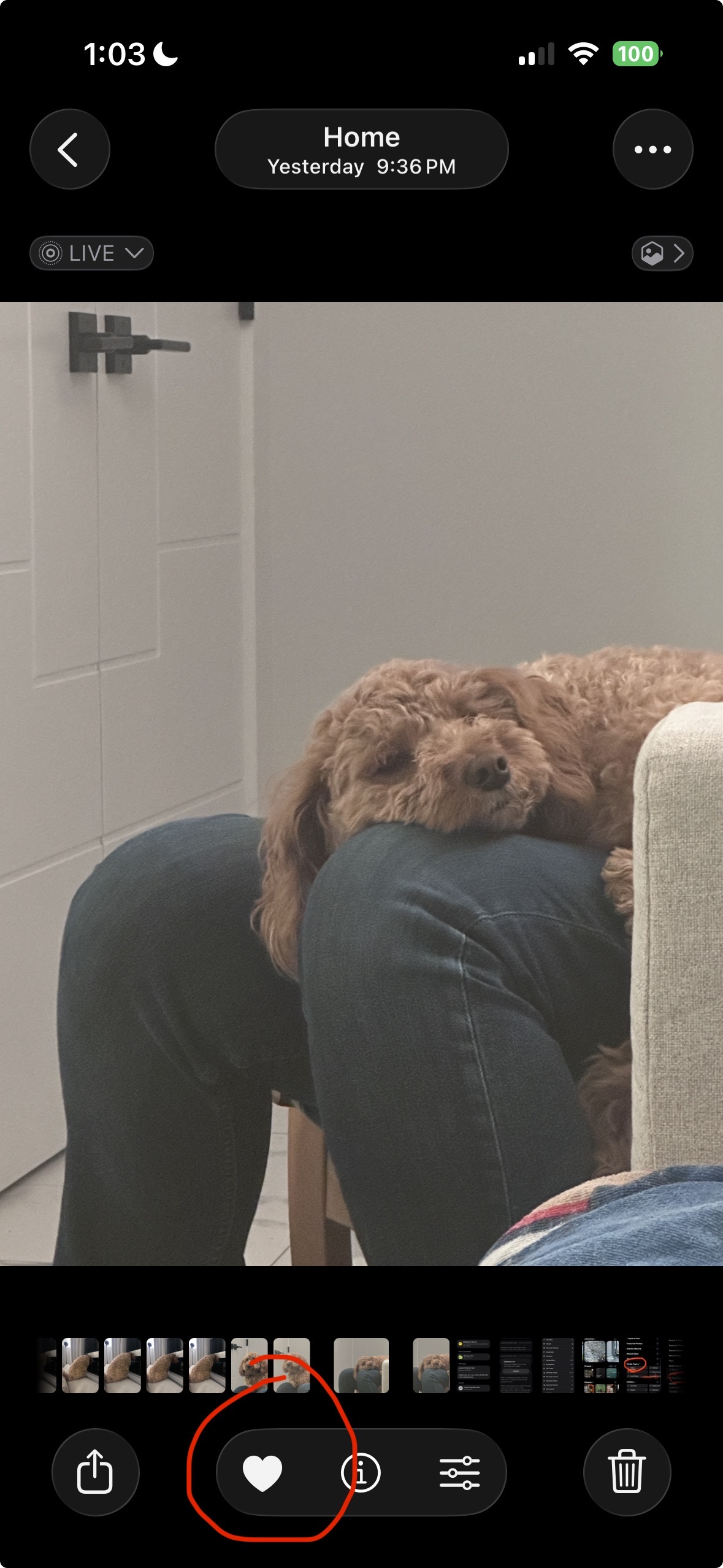
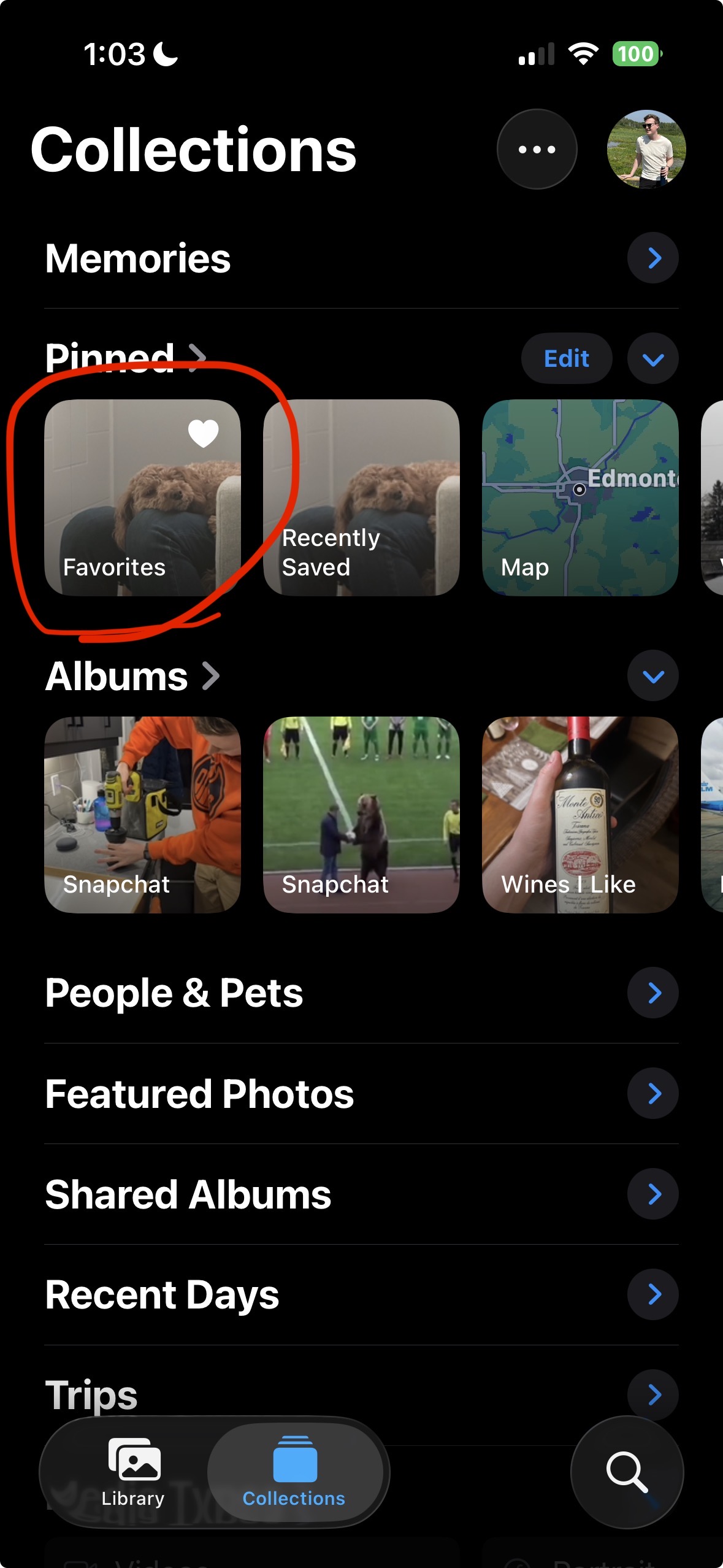
Open a photo you love and tap the heart button at the bottom. Every favorited photo lands in Collections > Utilities > Favorites, which gives you one clean view of the photos you care about most. Do this before any bulk cleanup so you can recover anything you tap by mistake.
Step 3: Delete only the obvious junk
With Favorites marked, you can safely cut the stuff you do not care about. Start with Screenshots and exact Duplicates. They are the biggest easy wins and almost never what you wanted to keep.
Step 4: Empty Recently Deleted
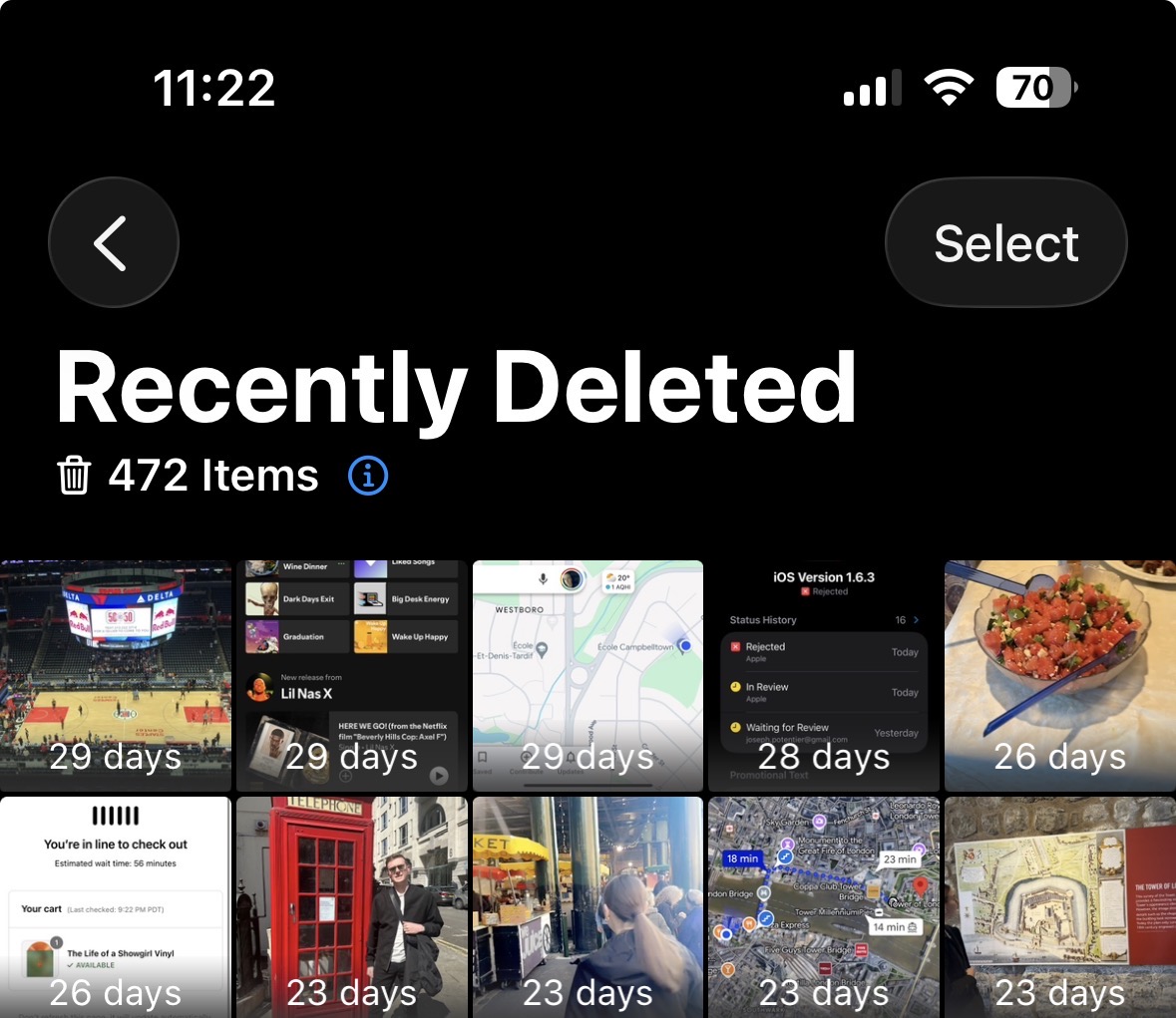
Deleted photos sit in Collections > Utilities > Recently Deleted for 30 days. Space does not actually come back until you empty it. When you are sure, tap Select > Delete All.
Step 5: Confirm the space you got back
Open Settings > General > iPhone Storage > Photos. The number next to Documents & Data is how much space Photos is using on this device. Compare it to before.
Still not enough space?
Your library probably has too many similar photos. Use Photo Monster's Compare Mode to keep the best shot of each group and delete the rest.
Want help doing this faster?
Swipe through your library like an old box of photos. Your monster eats what you don't want.

Free. iPhone only.